How to use Electrum
Electrum is a lightweight, secure wallet for Neurai. It works similarly to Bitcoin's Electrum wallet with a streamlined address type selection.
Installation
Download Electrum-Neurai
- Visit the Neurai wallets page
- Download the Electrum-Neurai wallet for your operating system
- Install the application following your OS-specific instructions
Verify Installation
After installation, launch Electrum-Neurai to begin the setup process.
Creating a New Wallet
Step 1: Launch Electrum-Neurai
Open the Electrum-Neurai application.
Step 2: Choose Wallet Name
Enter a name for your wallet file (e.g., "my-neurai-wallet"). This is just for your reference.
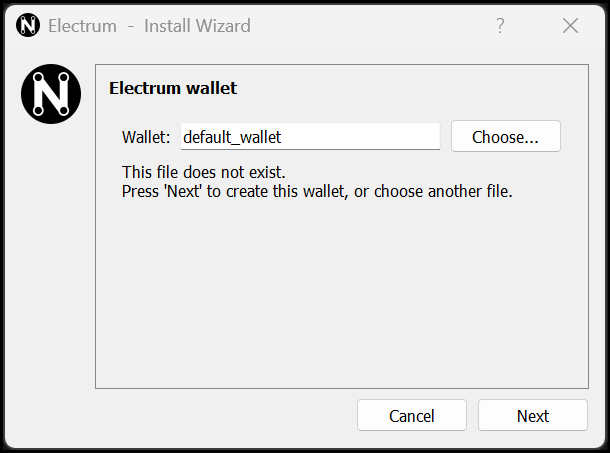
Assign a descriptive wallet filename.
Step 3: Select Wallet Type
Choose one of the following options:
- Standard wallet: Single signature wallet (recommended for most users)
- Multi-signature wallet: Requires multiple keys to sign transactions (advanced)
- Watch addresses: Monitor addresses without spending capability
For most users, select Standard wallet.
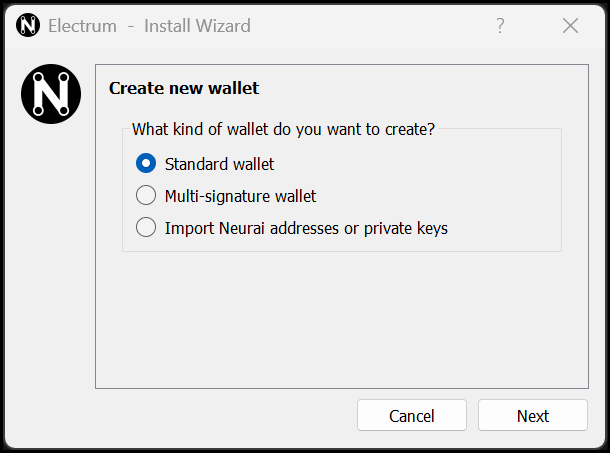
Choose the Standard wallet type for single-signature usage
Step 4: Create New Seed
Select Create a new seed to generate a new wallet with a fresh seed phrase.
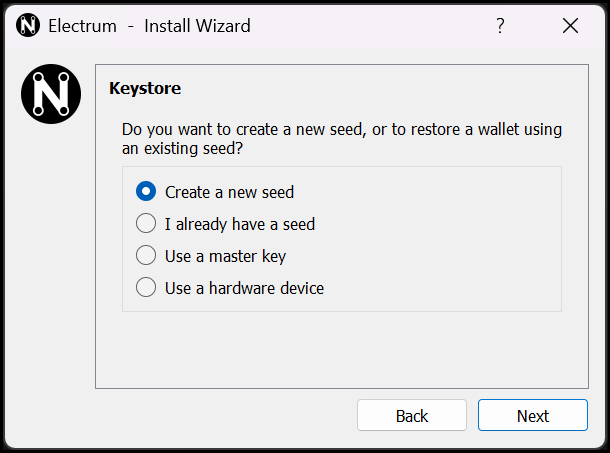
Choose the Standard wallet type for single-signature usage.
Step 5: Options: Seed Type
Electrum generates 12 BIP39 words randomly, and it is recommended to copy them to various storage devices such as paper, an encrypted file with a strong password, or any other method, because these 12 words are what will allow you to restore your wallet in the future.
CRITICAL STEP: You'll be shown a 12-word seed phrase.
- Write down these words in order on paper
- Store the paper in a secure location
- Never share your seed phrase with anyone
- Never store it digitally (no photos, no cloud storage)
- This is the ONLY way to recover your wallet
Example format:
1. word1    2. word2    3. word3    4. word4
5. word5    6. word6    7. word7    8. word8
9. word9    10. word10  11. word11  12. word12
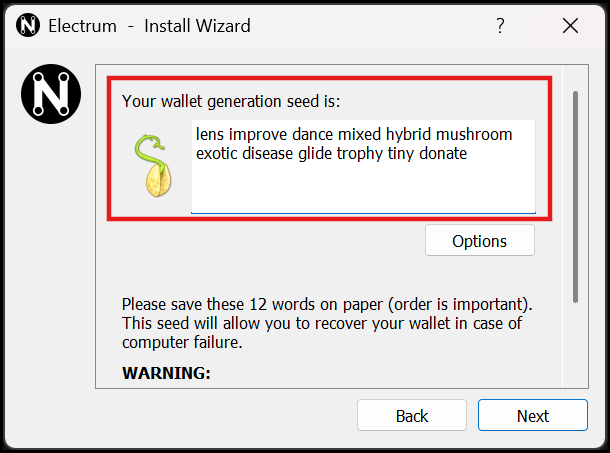
Generate a brand-new mnemonic for your wallet.
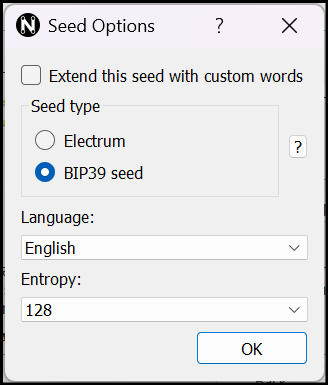
If you have doubts about these options or about passphrase, leave them as default.
Under the Options button, you will find different settings to use with the generated words. Here you can check "Extend this seed with custom words" Thjis option is to add passphrase in the wallet.
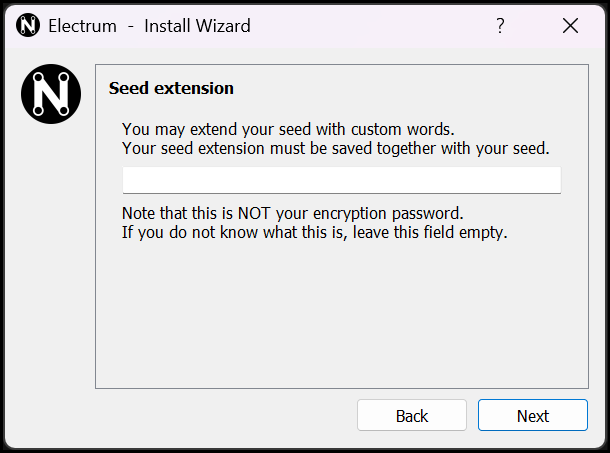
Here you add the passphrase, which is also called the additional word, although you can use a phrase. This option provides greater security, but without it, you will not be able to access your coins even if you have the 12 words.
Step 6: Confirm Your Seed
Electrum will ask you to re-enter your seed phrase to confirm you've written it down correctly.
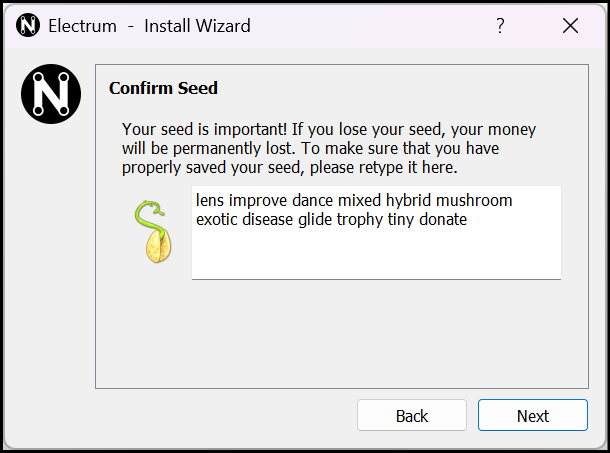
Confirm the mnemonic exactly as provided.
Step 7: Set a Password
Create a strong password to encrypt your wallet file:
- Use at least 12 characters
- Mix uppercase, lowercase, numbers, and symbols
- Don't use dictionary words or personal information
- Store this password securely (but separate from your seed)
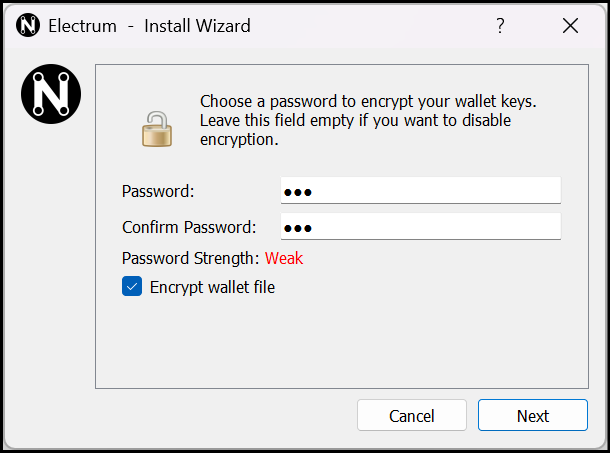
Confirm the encryption password before finishing the wizard.
This password encrypts the wallet file on your computer. It does NOT recover your wallet if you lose your seed phrase.
Step 8: Wallet Ready
Your Electrum-Neurai wallet is now created and ready to use!
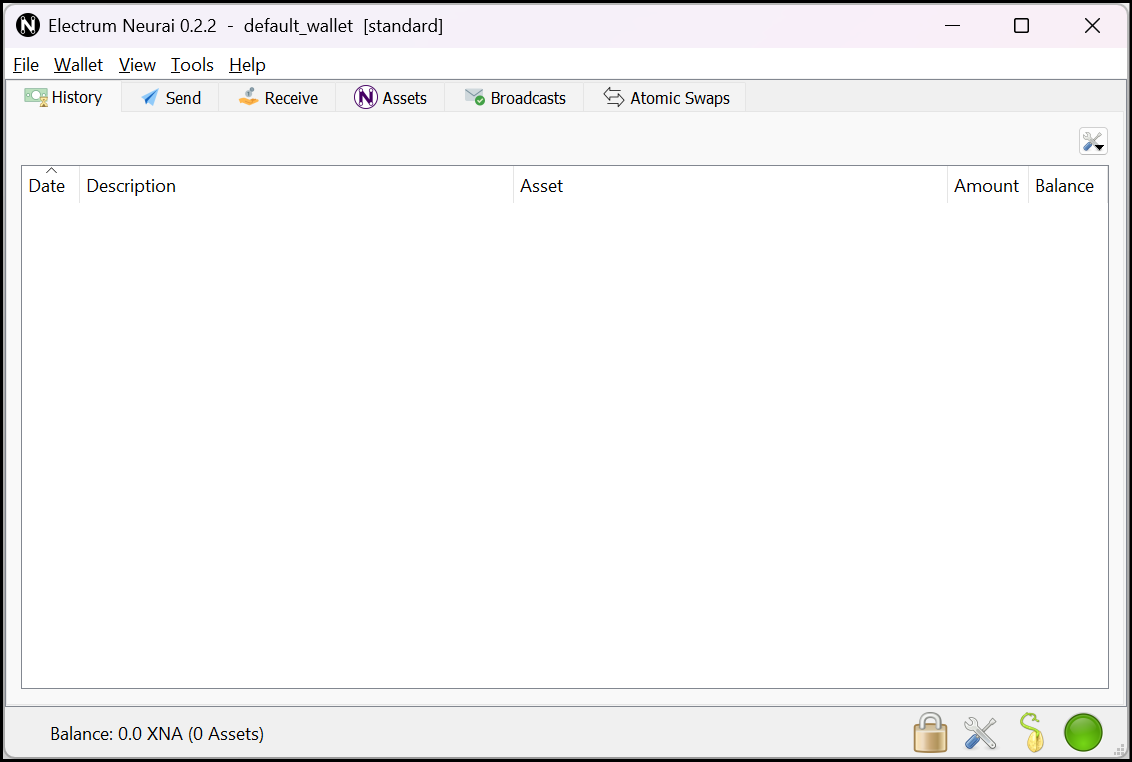
The wallet dashboard confirms a successful setup.
Receiving Neurai (XNA)
Get Your Receive Address
- Click the Receive tab
- You'll see your Neurai address (starts with "N")
- Optional: Add a description for this address
- Click New Address to generate additional receiving addresses
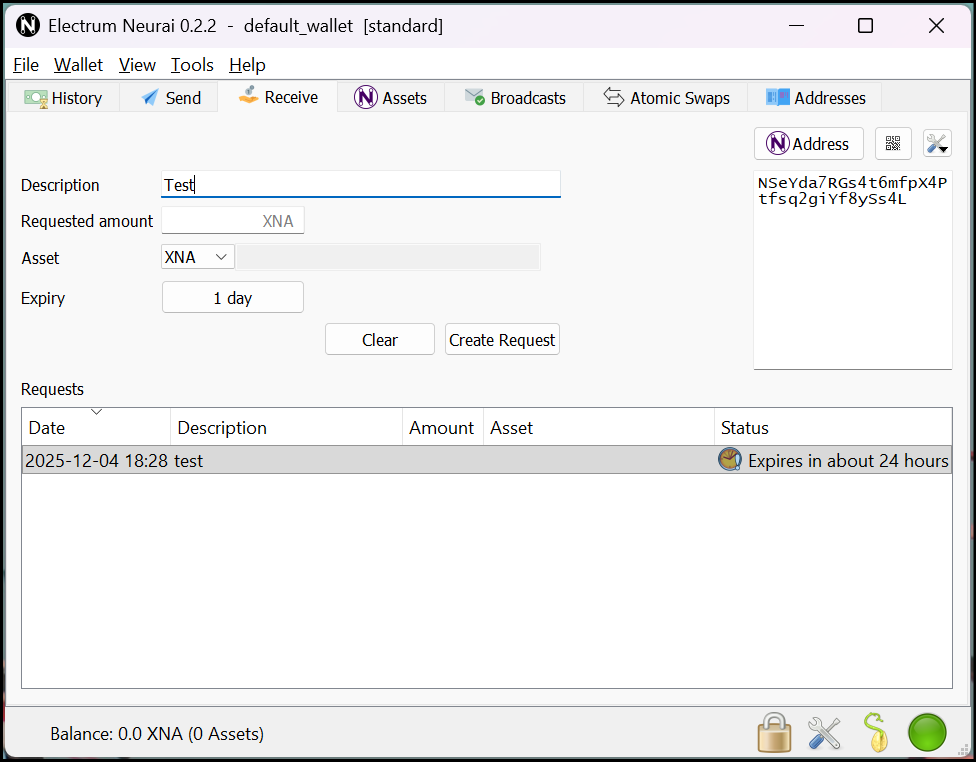
Use the Receive tab to generate fresh payment requests.
Share Your Address
You can share your Neurai address by:
- Copying the text address
- Sharing the QR code (click to display)
- Requesting a specific amount (optional)
Verify Receipt
Once someone sends XNA to your address:
- The transaction appears in the History tab
- Initially shows as "Unconfirmed" (0 confirmations)
- After ~1 minute, receives first confirmation
- After 6 confirmations, considered fully confirmed
Neurai Assets
This area is where assets with different addresses appear and where they are managed for sending, creating, etc.
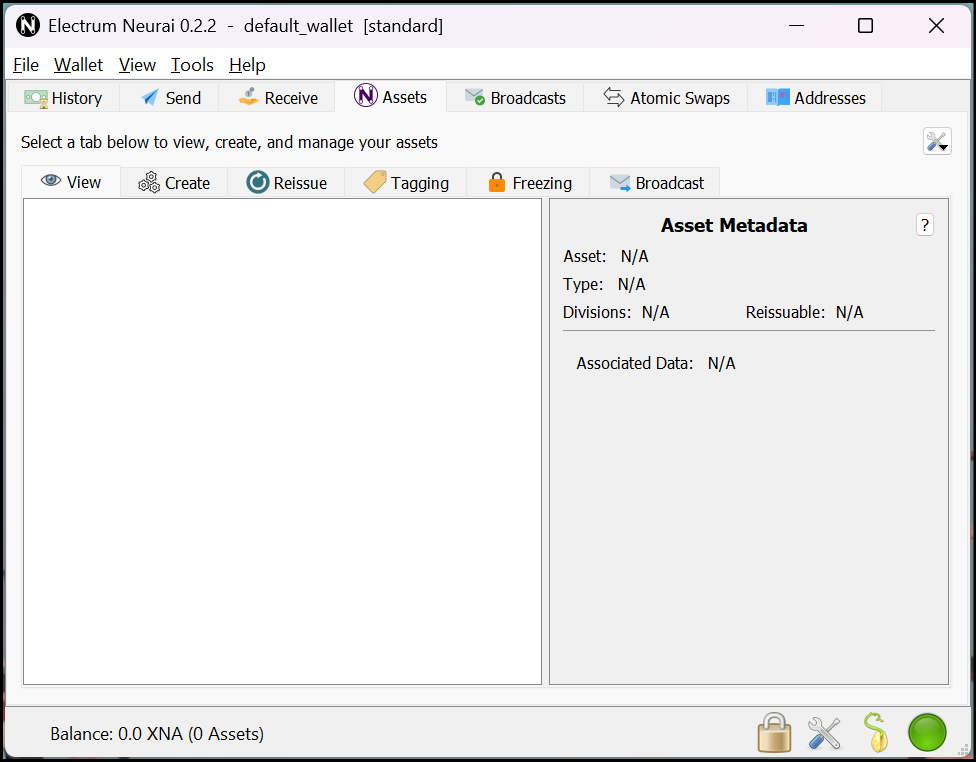
Monitor balances and confirmations from the History and Assets views.
Sending Neurai (XNA)
Step 1: Go to Send Tab
Click the Send tab in Electrum-Neurai.
Step 2: Enter Recipient Details
- Pay to: Enter the recipient's Neurai address
- Description: Optional label for your records
- Amount: Enter amount to send in XNA
Step 3: Set Transaction Fee
Electrum suggests a fee based on network conditions:
- Low priority: Cheaper, slower confirmation
- Medium priority: Balanced (recommended)
- High priority: More expensive, faster confirmation
You can manually adjust the fee if needed.
Step 4: Preview Transaction
Click Preview to review transaction details:
- Recipient address
- Amount to send
- Transaction fee
- Total (amount + fee)
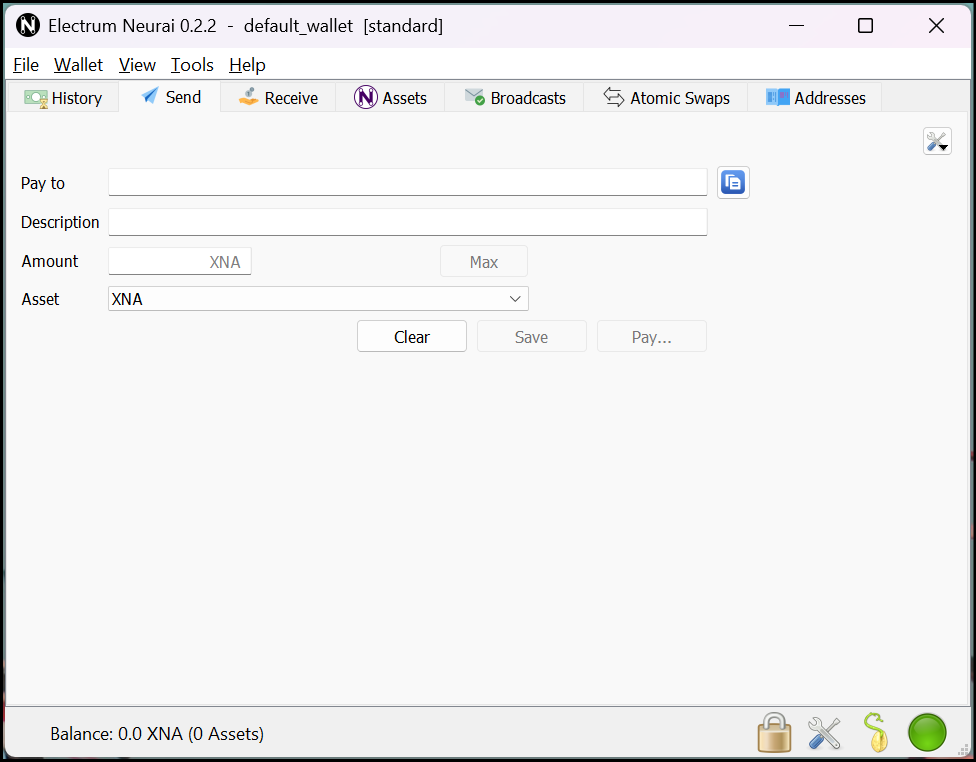
Review every field within the Send tab before signing.
Step 5: Sign and Broadcast
- Click Sign to sign the transaction with your private key
- Enter your wallet password if prompted
- Click Broadcast to send the transaction to the network
- Transaction will appear in your History tab
Step 6: Track Transaction
Monitor your transaction:
- Unconfirmed: Transaction sent, waiting for confirmation
- 1 confirmation: Included in first block (~1 minute)
- 6+ confirmations: Fully confirmed and secure
Advanced Features
Multiple Addresses
Electrum automatically generates new addresses:
- Each receive request can use a new address
- Improves privacy by not reusing addresses
- All addresses are derived from your seed
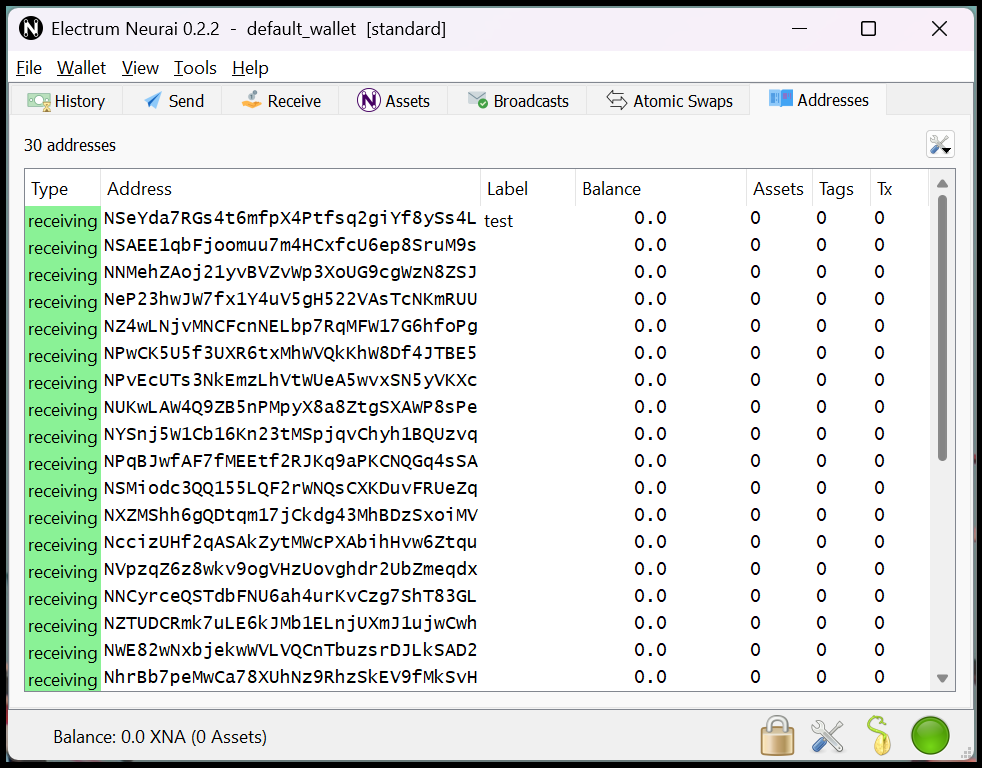
Figure 13. The Addresses tab helps audit derived accounts and privacy status.
Coin Control
For advanced users, enable coin control:
- Go to View → Show Coins
- Select specific UTXOs to spend
- Useful for managing asset transactions
Freeze Addresses
Temporarily prevent spending from specific addresses:
- Right-click an address in the Addresses tab
- Select Freeze
- Frozen addresses won't be used for sending
Export/Import
Export addresses:
- View → Show Addresses → Right-click → Export
Import watching addresses:
- File → New/Restore → Import addresses
- Enter addresses to watch (without spending capability)
Backup and Recovery
Backup Your Wallet
You have two backup options:
1. Seed Phrase (Recommended)
- Your 12-word seed phrase recovers everything
- Keep it secure and offline
- This is all you need to recover your wallet
2. Wallet File Backup
- File → Save Copy
- Backs up wallet file with labels and transaction history
- Still requires your password to open
Restore from Seed
To recover your wallet on a new device:
- Install Electrum-Neurai
- Choose I already have a seed
- Enter your 12-word seed phrase
- Set a new password
- Your wallet and balance will be restored
Never type your seed phrase into a website or share it with anyone. Electrum will never ask for your seed phrase via email or message.
Troubleshooting
Wallet Not Syncing
Solution:
- Check your internet connection
- Go to Tools → Network
- Try selecting different servers
- Restart Electrum-Neurai
Transaction Stuck
If your transaction has 0 confirmations for hours:
- Check if fee was sufficient
- Wait (can take longer during network congestion)
- Advanced: Use Replace-By-Fee if enabled
- Contact support if stuck for >24 hours
Forgot Password
- Wallet file password: No recovery possible, must restore from seed
- Lost seed phrase: Funds are unrecoverable - no one can help
- This is why backing up your seed is critical
Wrong Balance Displayed
Solution:
- Tools → Network → Check server status
- Restart Electrum-Neurai
- Let wallet fully sync
- Check transaction history for discrepancies