How to use Webwallet
The Neurai Webwallet is a browser-based wallet that provides instant access to your Neurai funds without downloading or installing any software. It offers a convenient way to manage XNA and Neurai assets directly from your web browser.
Introduction
What is the Webwallet?
The Neurai Webwallet is a lightweight, web-based interface that allows you to:
- Create and restore wallets instantly
- Send and receive XNA
- Manage Neurai assets and tokens
- Access your funds from any device with a browser
Advantages
- No Installation Required: Access immediately from any browser
- Cross-Platform: Works on Windows, Mac, Linux, mobile devices
- Always Up-to-Date: No need to download updates
- Quick Setup: Create a wallet in under 2 minutes
Important Considerations
Webwallets are convenient but require extra security precautions. Always:
- Use official URLs only (wallet.neurai.org)
- Verify the SSL certificate
- Never use public/shared computers
- Clear browser cache after use on non-personal devices
Accessing the Webwallet
- Open your web browser
- Navigate to the official Webwallet URL: https://wallet.neurai.org
- Verify the SSL certificate (padlock icon in address bar)
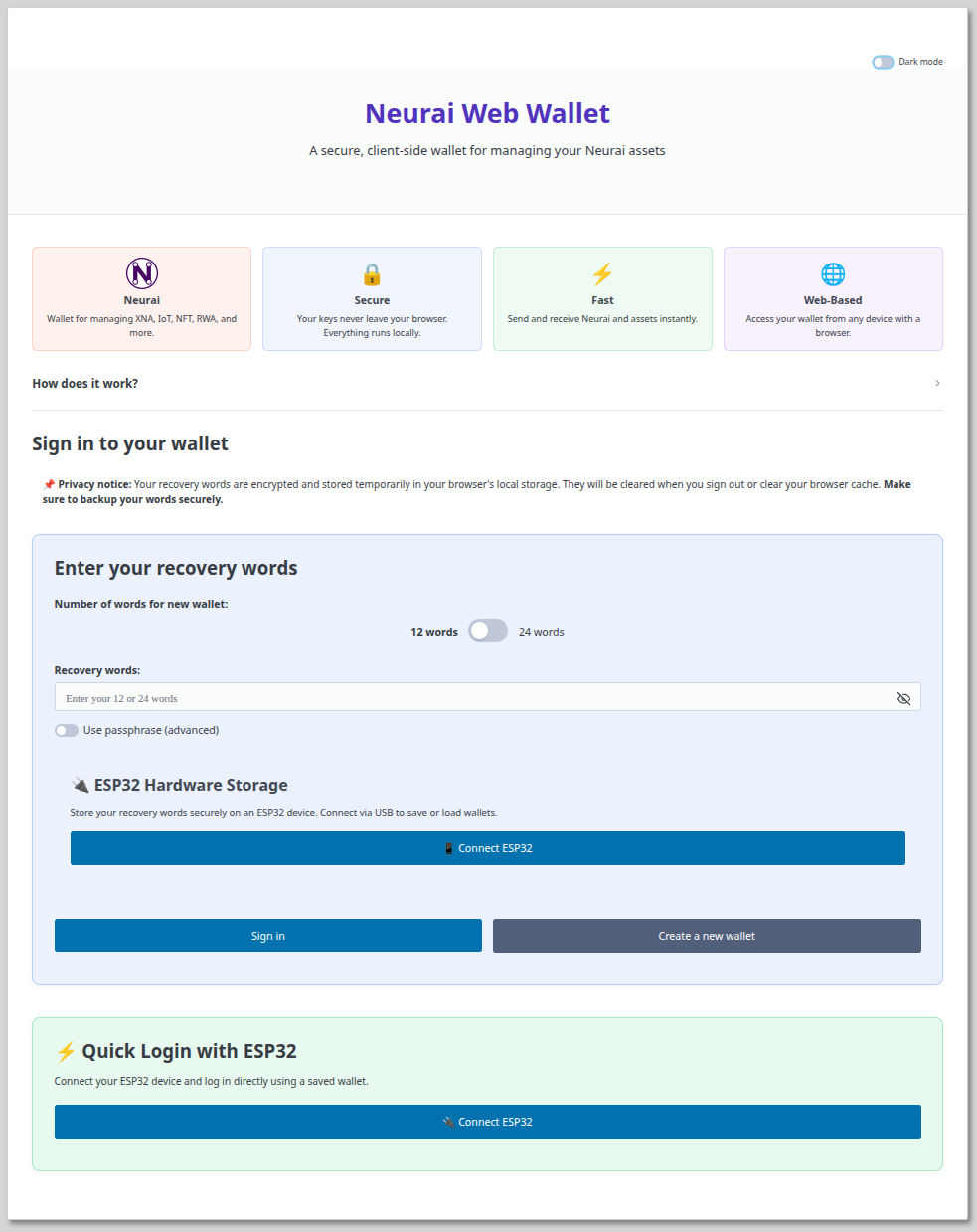 Figure 1. The Neurai Webwallet homepage showing the main access options.
Creating a New Wallet
Step 1: Select "Create New Wallet"
On the main page, click the Create New Wallet button to begin the wallet generation process.
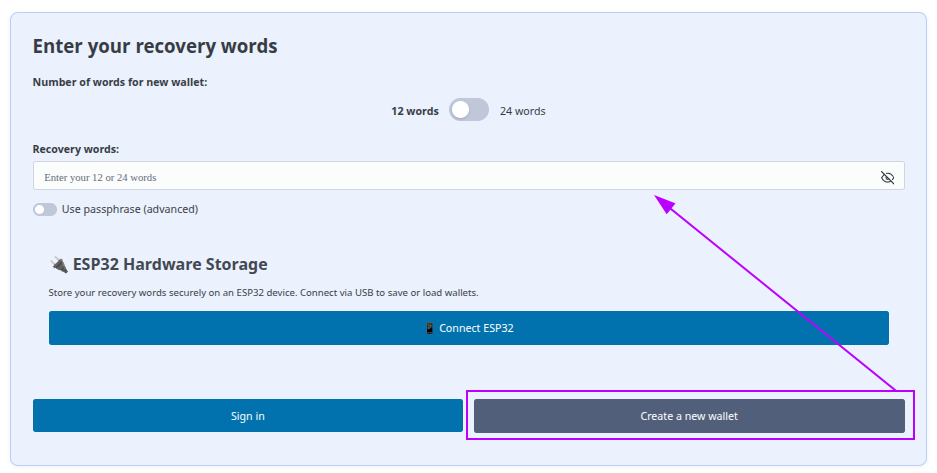 Figure 2. Click "Create New Wallet" to generate a fresh seed phrase.
Step 2: Save Your Seed Phrase
The webwallet will display a 12-word seed phrase. This is your ONLY way to recover your wallet.
- Write down these words in exact order on paper
- Store the paper in multiple secure locations
- NEVER screenshot or save digitally
- NEVER share with anyone
- If you lose these words, your funds are permanently lost
Security Checklist:
- ✅ Written on paper (not typed)
- ✅ Stored in a safe place (fireproof if possible)
- ✅ Kept private (no photos, no cloud storage)
- ✅ Verified by writing it down twice
Step 3: Confirm Your Seed Phrase
The webwallet will ask you to verify your seed phrase by selecting words in the correct order. This ensures you've recorded it accurately.
Step 4: Set a Wallet Password (Optional)
For additional security, you can set a password to encrypt your wallet in the browser. This password protects your wallet while it's stored in your browser's local storage.
- Password: Protects the wallet file in your browser (can be changed)
- Seed Phrase: Master key to your funds (cannot be changed, required for recovery)
Entering Your Wallet
Option 1: Restore from Seed Phrase
If you already have a wallet, click Restore Wallet and enter your 12-word seed phrase.
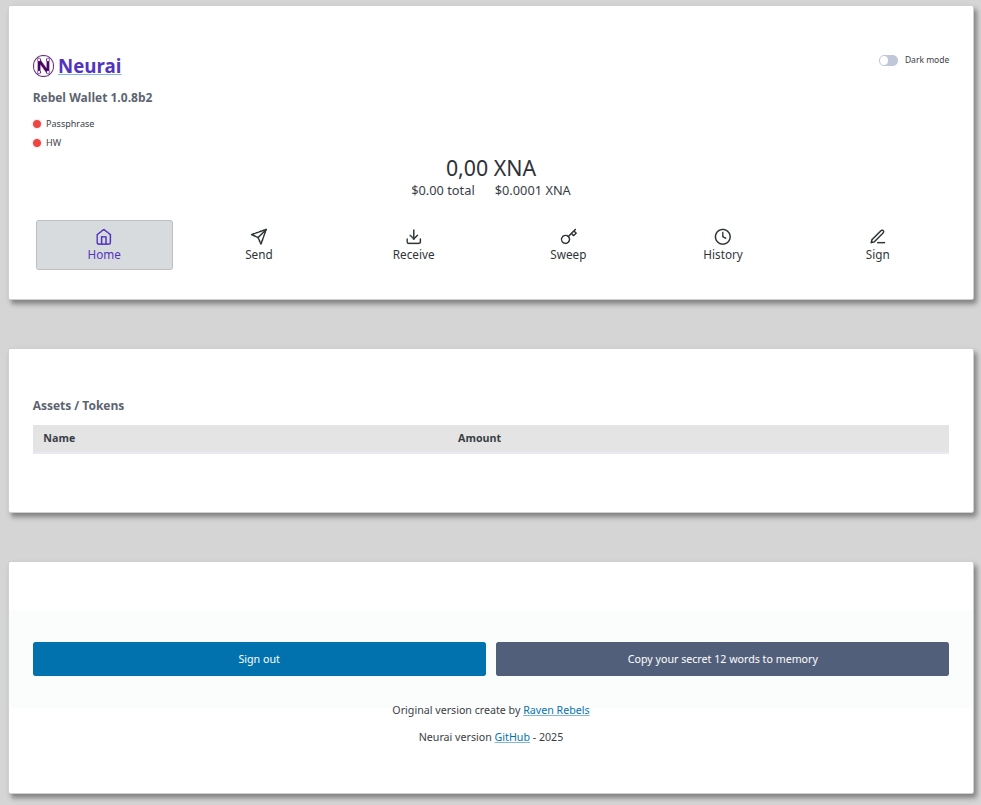 Figure 3. Restore an existing wallet by entering your seed phrase.
Option 2: Resume Saved Session
If your wallet is saved in the browser and you have a password, simply enter the password to access it.
Never save your wallet on public or shared computers. Always use "Restore from Seed" and clear your session when finished.
Sending Neurai (XNA)
Step 1: Navigate to Send Tab
Click the Send tab in the webwallet interface.
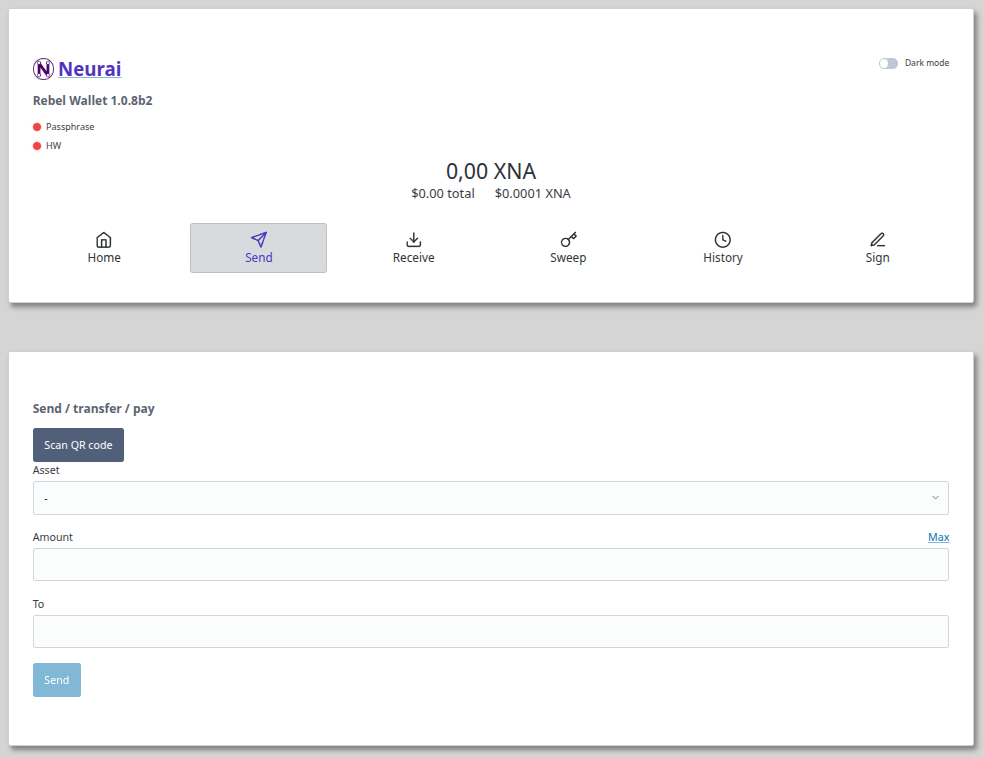 Figure 4. The Send interface for creating outgoing transactions.
Step 2: Enter Transaction Details
Fill in the following fields:
- Recipient Address: The Neurai address (starts with "N")
- Amount: Quantity of XNA to send
- Fee: Transaction fee (adjust based on priority)
Step 3: Review and Confirm
- Double-check the recipient address
- Verify the amount and fee
- Click Send Transaction
- Confirm the transaction in the popup
Step 4: Transaction Broadcast
Once confirmed, your transaction is broadcast to the Neurai network. You can track it in the transaction history or using a block explorer.
For large amounts, always send a small test transaction first to verify the address is correct.
Receiving Neurai (XNA)
Step 1: Access Receive Tab
Click the Receive tab to view your receiving address.
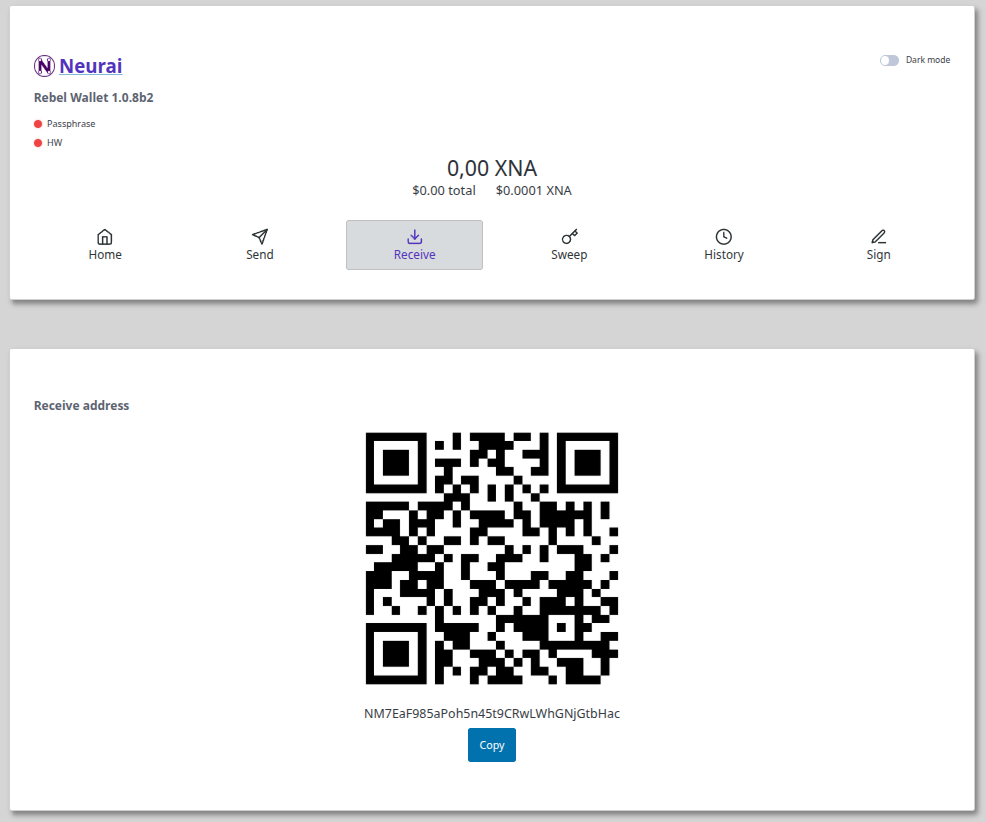 Figure 5. Your receiving address with QR code for easy sharing.
Step 2: Share Your Address
You can share your Neurai address by:
- Copy Address: Click the copy icon to copy the text address
- QR Code: Display or share the QR code for mobile scanning
- Request Amount: (Optional) Specify an amount for payment requests
Step 3: Monitor Incoming Transactions
Once someone sends XNA to your address:
- Transaction appears in your History/Transactions section
- Shows as "Unconfirmed" initially (0 confirmations)
- After ~1 minute, receives first confirmation
- Fully confirmed after 6+ confirmations
Managing Assets
The Neurai Webwallet supports the creation and management of Neurai assets (tokens, NFTs, etc.).
Creating Assets
- Navigate to the Assets section
- Click Create New Asset
- Enter asset details (name, quantity, divisibility)
- Set asset permissions (reissuable, restricted, etc.)
- Pay the creation fee and broadcast
Sending Assets
- Go to Send tab
- Select Asset instead of XNA
- Choose the asset from your portfolio
- Enter recipient and amount
- Confirm and broadcast
Viewing Asset Portfolio
Check the Assets or Portfolio tab to see:
- All owned assets
- Asset balances
- Asset metadata and properties
Troubleshooting
Wallet Not Loading
Solution:
- Check your internet connection
- Clear browser cache and cookies
- Try a different browser
- Disable browser extensions temporarily
- Check if the site is down (community channels)
Transaction Not Confirming
Possible causes:
- Low Fee: Transaction may be stuck in mempool
- Network Congestion: Wait longer or use Replace-By-Fee
- Wrong Address Format: Verify the address is valid
Solution:
- Wait 30 minutes minimum
- Check transaction on block explorer
- If stuck for hours, contact support with transaction ID
Balance Not Showing
Solution:
- Wait for the wallet to fully sync
- Refresh the page
- Check the correct address is displayed
- Verify transaction on block explorer
Forgot Password
- Browser Password: Can't recover, must restore from seed phrase
- Lost Seed Phrase: Funds are UNRECOVERABLE - no one can help
The seed phrase is the ONLY way to recover your wallet. Without it, your funds are permanently lost.
Getting Help
Official Resources
- Neurai Discord: https://discord.gg/neurai
- Neurai Telegram: [Community channels]
- GitHub Issues: https://github.com/NeuraiProject
- Official Website: https://neurai.org
Community Support
Ask questions in official Neurai community channels. Always be cautious of:
- ❌ Private messages offering "help"
- ❌ Anyone asking for your seed phrase or password
- ❌ Websites claiming to "unlock" or "recover" funds
- ❌ "Support" requesting remote access to your device
Reporting Issues
When reporting issues, include:
- Browser name and version
- Operating system
- Clear description of the problem
- Screenshots (never include seed phrase or private keys)
- Transaction ID (if applicable)
Remember: The webwallet is convenient for everyday use, but for large holdings, consider using Electrum-NXA or Neurai-QT with offline cold storage for maximum security.